Rev3 rocket electronics part 1: Hardware

This is post #1 in a series covering the hardware and software design for my work-in-progress GPS-guided rocket recovery project.  The main index to the series of posts is here, and an introduction to the project (a PowerPoint presentation) is here.

In this post I’ll cover the hardware design, including the schematic, board layout, and Eagle PCB files from my “Rev3″ hardware of March 2007.  (That’s the most recent version I have working as of this writing.)  This post is also a good starting point even if you’re mainly interested in the software - as a tightly integrated system, an understanding of the hardware is key to the software as well.

About rights: I hereby grant everyone and everything in the universe permission to use and modify this hardware design for any purpose whatsoever.  In exchange, you agree not to sue me about it.  I make no promises.  By using the design you agree that if you’re unhappy the most I owe you is what you paid me (zip).  That seems fair.

If you find this useful, I’ll be pleased if you drop me a note or leave a comment here (just so I know it’s been helpful to someone) and if you give credit to Nerdfever.com for the design in any publications.  But you don’t have to.

The board was designed in Eagle PCB, which is available in a free “light” edition, limited to non-profit use and 2-layer boards of not more than 4.0 x 3.2 inches.  (Sufficient for this board.)  Eagle takes some getting used to, but works well.

If you want to modify my design, here are the Eagle PCB files for the schematic and board: Autopilot_r3.zip

This hardware has made many successful flights, and supports the following features:

  • PIC18F2620 MCU (programmable in C)
  • GPS interface
  • Drives a hobby servo (to steer the parachute)
  • Pressure altimeter (good to about 2 feet precision)
  • Triggers parachute deployment at apogee
  • Able to log flight data in flash memory
  • Drives an in-flight digital camera
  • Piezo speaker output
  • 3 push-buttons, 3 LEDs

Figure 1 shows the schematic:

Rev3 Schematic

Fig. 1 - Rev3 schematic

A few comments about the circuit are in order.

MCU

The MCU is a PIC18LF2620.  It has 3968 bytes of RAM and 64 kbytes of Flash memory, which is available for both program space and logging of flight data.  It will run at up to 8 MHz off the PIC’s internal oscillator – I don’t use an external crystal.

Interestingly, these specs are very similar to those of the Apollo Guidance Computer.  Except that the PIC is a single 28-pin chip, costs about $4, and draws only a couple of milliamps.

You can program the PIC using Microchip’s free C18 compiler and free MPLAB IDE environment – those are what I recommend.

GPS

The board was designed to interface with a GlobalSat EM-406 GPS using a serial UART interface.  I’ve used others (see tweaks.h for a list); it will probably work fine with any serial-interface GPS.

The PIC transmits to the GPS on pin 17 of the PIC (TX).

Note that pins 4 and 5 of the PIC are tied together, and pin 6 (C1OUT)  is tied to pin 18 (RX).  This is part of a no-hardware level-shifting scheme that allows the 5v PIC to read data from the EM-406 GPS, which outputs at 0v/2.85v. Read the rest of this entry »

Quickbooks label-printing workaround

Intuit is a frustrating company to deal with.

If you’re using Quickbooks 2008 or 2009 on Windows 7 and attempt to print a shipping label using the built-in Shipping Manager app (a FedEx label, anyway), it won’t print.

You get an error message something like:

Unable to print label: Thermal printer

And the name of the printer in the printer dialog box has a bunch of garbage including a couple of UUIDs.

I suspect this is one of Intuit’s not-so-subtle ways of getting you to upgrade. When I called in for my activation code, the nice Indian lady on the phone told me that QB 2008 is going to crash my Win7 computer when I least expect it, so I’d better upgrade right now.

Anyway – here’s the workaround:

Install a trial version of Quickbooks 2010 (any version, doesn’t matter). In that version, go into Shipping Manager (Create Invoice>Ship) and let it upgrade. Setup and test your printer in it.

After that, you can un-install the QB2010 and the upgraded Shipping Manager will print labels just fine.

GPS rocket update, PIC32 pinout spreadsheet

The 2009 rocket flying season is nearly over, and I haven’t had a single flight all year toward my GPS-guided rocket recovery project. I’ve been too busy with business stuff to work on it, but my goal for this winter is to get the new “Rev4″ PCB up and running, ready for flight in the spring.

For that, I’ve decided to shift from the PIC18 to the MIPS-based PIC32 parts.

Which means I’ll be porting over a lot of code from the PIC18, so now seems a good time to post my long-promised source code and schematics for what I’ve done so far, which I plan to do in the coming days.

For now, here is a Excel spreadsheet with the PIC32 pinout for the 64 pin TQFP parts. Each time I do a MCU-based design, I make a table like this for allocating MCU pins by function. If you’re working with the PIC32, you may find it useful for the same purpose.

Click the image to download the .XLS file.

PIC32MXx40 pinout

PIC32MXx40 pinout

Am I the only one who thinks this is funny?

The Economist, 2009-09-12, US Edition (Georgia)

The Economist, 2009-09-12, US Edition (Georgia)

New, improved SMD Pitch-o-meter

Here’s a new, improved SMD Pitch-o-meter for all your SMD measurement needs.  (Also may be useful as a general microscopy scale.)

This version has a more readable distance scale marked in increments of 0.01 inches (10 mil) and 0.1 millimeters (100 microns), plus size outlines for 1206, 0805, 0603, 0402, and 0201 SMD packages.

Print it out at 600 pixels/inch (glossy photo paper recommended) and keep it handy near your binocular microscope.

Be sure to click on the image and download the full-sized version.

SMD Pitch-o-meter

SMD Pitch-o-meter

Things the iPhone could learn from the Treo

As per the topic of my last post, I recently switched from a Palm Treo 650 to an iPhone 3GS.

In most ways the iPhone is far more advanced, but as a PDA the iPhone still falls short of the 7 year old Treo design.

1 – Getting to most-used apps fast

The iPhone’s UI is beautiful, but it is needlessly slow to get at often-used apps like Phone and Contacts.

On the Treo, a single button press gets you to the phone keypad.  A different single button gets you to Contacts, or any of 2 apps of your choice.  Admittedly, the Treo has many more buttons, but the iPhone could do far better.

On the iPhone, you:

  1. Press Home
  2. “slide to unlock”
  3. Press Home again (if you were previously in an app)
  4. Slide the app menu left or right a few times (if the app you want isn’t on the first menu page or the dock)
  5. Press the app you want

In the best case it’s 3 steps to your app, in the worst 5 steps.  That’s a lot of work just to start your favorite app.

But this is completely unnecessary.  Apple could easily do something like this:

iPhoneMockup2

Apple, you can do better!

(forgive the crude Photoshop work; but you get the idea).

This way you get to your favorite apps much quicker – just Home and one swipe.

Apple, if you want to do this, you have my permission – I won’t sue you.  Just ask if you want it in writing (see “About me“).

2 – Named app pages

The Treo let you name each page of apps, so you could categorize them.  And you could walk thru each page with the Home button.  I don’t see why Apple can’t do that.

3 – Contact searching

The Treo was much quicker at searching for contact entries.  It had a clever system where if you entered “db” it would search not just for names containing “db” but also for names with the initials “D.B.”.  This worked really well – just 2 or 3 letters was usually enough to identify a contact this way.

The only reasons I can think of why Apple doesn’t do this are (1) they didn’t know about it, or (2) patent issues.  But I’d think Apple and Palm are both infringing on enough of each others patents to make that moot – they’re already well into the realm of mutually-assured destruction.

4 – Telephone number selection

Again, Treo wins.

On the Treo all the phone numbers for each contact (office, home, fax, mobile, etc.) are visible on the screen.  You can directly click any one of them and dial it.

On the iPhone, you first find your contact, then select it, and only then can you choose a number to dial.  Three steps vs. one on the Treo.

5 – No casual notes in phone numbers

The Treo would happily ignore everything after the first alphabetic character in a stored phone number, so you could include casual notes like this:

+1 800 555 1212 (lake house)

+1 800 555 1213 (girlfriend’s place)

That’s a no-no on the iPhone – it will simply refuse to dial numbers that contain “invalid” characters.

There is no good substitute way to store this kind of info, which I find pretty important.

I’m very impressed with the iPhone’s capabilities, but I’m surprised how little Apple learned from what was already in the market.

In retrospect, I think I might have been better off buying the Palm Pre.  But I did want to try the “Apple experience”, and having spent two weeks getting the iPhone setup, I think I’ll let the Concorde Effect do it’s dirty work and stick with the iPhone for a while.

At least until my contract with AT&T is up.

Painful migration from Palm to iPhone

(Updated July 11 – it’s finally done.  Notes on regular expressions to search on and resetting to fix sync problems added.)

I’ve finally given in and joined the Apple collective.  On my phone, anyway.

For years my Mac-using friends have raved about how great the Apple experience is… “it just works!”.

If only.

I’ve been migrating my stuff from my old Palm Treo 650 to an iPhone 3GS for well over a week now.  I’m nearly there.  This post is partly to document things for myself, if I ever have to do this again.

Here are my tips if you’re going to do something similar:

1 – Calendar

This was the easiest, since I’d already moved onto Google Calendar some time ago (using GooSync with the Treo).  I just set the iPhone to sync with Google Calendar, and it works fine.

2 – RPN calculator

I’ve been using Russ Webb’s RPN on the Palm for many years.  It’s a solid, well-designed RPN calculator, with full programmability.  It worked well enough that I sold my old HP-42S on eBay (at a huge profit).  But it doesn’t run on the iPhone.  And there’s no Palm emulator for the iPhone due to one of Apple’s many stupid rules.  (“No emulators.”  Another stupid rule that galls me is “No scripting”, which means no Python.)42s on the iPhone

After trying lots of calculators in the App Store, I settled on 42S, a port of the Free42 re-implementation of the HP-42S (not an emulation; it doesn’t use HP’s ROMs).  It’s powerful, has a good UI, and is fully programmable.  It’s even open-source (but not free on the iPhone; it’s $5). I’m happy.

3 – Memos

I kept a lot of memos on the Palm, mostly shopping lists, to-do, etc.  I want these to be accessible from both my desktop and the iPhone.

Apple’s “Notes” app syncs to Outlook in iPhone 3.0, but I don’t (and won’t) use Outlook.

The solution I found was to put my memos in the “notes” field of Contact entries, then sync them with Google Contacts.  I put the memo title in the Company field, with “a.a ” in front of it – this forces the memos to the top of the list.

That solution was found after looking into a LOT of other possibilities, including the popular “Evernote” app and one called “gNotes” that syncs to Google Notebook.

I’d never have guessed it, but both of these apps (and who knows how many others) sync IN THE CLEAR!  If you’re using an open WiFi connection (say, at Starbucks), anyone on the network can see all your private notes being synced, using nothing more than a freeware packet sniffer like Wireshark.  I tried it myself – it’s true.  God help you if your bank account password is in there.

With all the stupid rules Apple has for the App Store, I can’t see why they allow apps to transmit private data in the clear (without even a warning); preventing that would be far more useful than “No emulators” or “No scripting”!

4 – Contacts

Now the sob story.

I spent days figuring out how to export my 800+ contacts from the Palm and get them into the iPhone and a desktop app.  (I used to use Palm Desktop.)

I don’t (and won’t) use Outlook.

I settled on Google Contacts as the best desktop solution – it has a simple, clean UI, and is accessible from anywhere on the web.  I can still get at my contacts on the iPhone if my Internet connection goes down.  And it’s free.

If you’re running older versions of Palm Desktop, there are export utilities on the Web that can help.  But I didn’t find one that supported Palm Desktop v6.5′s newer format.

However, Palm Desktop will export to vCard format.  Which is fine, except that everyone’s implementation of vCard has some non-standard fields that need to be translated.

So I spent a day or so reverse-engineering the custom vCard formats used by Palm and Google. (Create funny-looking contacts; export; view with text editor, hypothesize, edit, import, compare results.  Repeat…)

Then I exported all my contacts (one Palm “category” at a time, otherwise Google puts all the imports into the same “group”) into .VCF files and made the necessary corrections with a text editor; mostly via simple search-and-replace (but some use of regular expressions was needed).

Here are the steps I used:

A – Translate fields from Palm to Google format

The following vCard fields don’t import to Google; they’d need translation but I didn’t bother since I wasn’t using any of them:

X-PALM-ANNIV (anniversary date) >  no Google equivalent, need custom field

IMPP:IM (IM address) > X-GTALK or X-YAHOO, etc.

IMPP:IM2 (another IM address) > X-GTALK or X-YAHOO, etc.

X-PALM-ASSISTANT (name of secre… um, personal assistant) >  no Google equivalent

X-PALM-ASST-TEL (telephone number of same) > no Google equivalent

Then I translated a couple of custom fields in the Palm that I’d started using back before Palm introduced standard fields for the same thing:

“X-PALM-CUSTOM;1″ > “EMAIL;INTERNET”

“X-PALM-CUSTOM;2″ > “URL”

Next, the Palm marked a firm’s “main” number (switchboard number) differently than Google did:

“TEL;X-Palm-Main” > “TEL;TYPE=MAIN”

B – Translate extensions into commas

The iPhone address book refuses to dial any number that has characters other than +, 0-9, #, * and , (comma) in it.

This causes more than one kind of problem.

First, if you store telephone extension numbers like I did, you have a lot of numbers that look like this:

+1 800 555 1212 x1234

…indicating the use of extension 1234.  The only way I found to preserve this information is to change the ‘x’ (or “ext.”; whatever you use) into a comma (‘,’).  The comma is allowed, and causes the iPhone to pause (rather a long time) and then dial the extension (rather slowly).  At least it’s still there.

These I changed, after finding them with the regular expression “x[0-9]“.  (I use TextPad as my editor; your regex syntax may differ.)  That expression isn’t perfect, but I looked at each hit and edited by hand.

C – Create Custom Fields

The Palm Desktop had a concept of a”preferred” number for a contact – I think this was supposed to be the number that it would dial by default.  This was marked in the vCard format with “PREF” like this:

TEL;HOME;PREF:+1 800 555 1212

Google (and the iPhone) don’t seem to support this concept, although it is a part of the official vCard 2.1 spec (I read that too).  No problem, I thought – I’ll just move that into a note after the phone number:

+1 800 555 1212 (preferred)

After all, I have lots of other kinds of notes in my Palm address book numbers.  For example:

+1 800 555 1212 (lab)

+41 22 730 5111 (Geneva main)

+1 800 555 1212 (lake house)

etc.

This turned out to be a bigger problem.  As mentioned, the iPhone won’t dial a number with notes in it.  This is a major pain – the Palm happily ignored non-digit characters.

There is a workaround – “custom fields”.  You make a custom field label and put your notes in there.  So:

+1 800 555 1212 (lake house)

becomes

Lake house: +1 800 555 1212

The syntax for this is:

item1.TEL:+41 22 730 5111
item1.X-ABLabel:Geneva main
item2.TEL:+1 800 555 1212
item2.X-ABLabel:Lake house

Again, I edited in these changes by hand, after finding them with the regex “^TEL.+[0-9]+.+[:alpha:]“.  Remember to increment the item number if there are multiple custom fields in the same contact.

Once you do that, the iPhone offers “Lake house” and “Geneva main” as possible labels on every phone number, but I can live with that.

D – Fix truncated notes

Ah, the joys of incompatible software.  The Palm stores control characters (CR and LF) in a “QUOTED-PRINTABLE” format, such that newlines look like “=0D=0A”.  Which is fine, except that Google’s parser sometimes misinterprets ‘=’ symbols in the note (like “Son=Oliver”) in a way that truncates the note.  This only happened a few times, but I had to fix each one by hand.

I searched in the Palm-exported .VCF file for “^NOTE.*=[^0Q]” (a line starting with “NOTE” contaning an equal sign followed by something other than zero or Q).  Then I checked each imported note this found and fixed it by hand if necessary.

E – Resetting the iPhone/iTunes when out of sync

Somewhere while making all these changes (and test imports/exports) the iPhone/Google synchronization (performed by iTunes via USB)  got messed up, such that new entries in one contact list wouldn’t get synchronized with the other.

I tried the File>Preferences>Devices>Reset Sync History button in iTunes, but that didn’t help.  In the end, the only way I found to fix it was:

  1. Uninstall iTunes
  2. Delete the iTunes folder in /Users/<username>/Music (this was on Vista, try /Documents and Settings/<username>/My Documents/Music if you’re on XP).
  3. Delete the “Apple” or “Apple Computer” folders in /Users/<username>/Local and …/LocalLow and …/Roaming.
  4. Re-install iTunes

(I did try several subsets of that, which didn’t work.)

After all of that, I imported the result into Google.  And let it sync with the iPhone.

At first it seemed to work OK.  But when I turned on over-the-air syncing, some phone numbers were missing altogether, and others were very messed up on the iPhone.

F – Don’t use over-the-air syncing (Microsoft Exchange, ActiveSync)

After much hair-pulling and googling, it turns out that the ActiveSync protocol that Google uses to sync with the iPhone doesn’t support custom fields.  Any number labeled with a custom field doesn’t sync.  (In fact, just enabling over-the-air syncing on the iPhone disables the use of custom fields.)

So how do you identify which number is for the main office, and which for the regional office?  Or your friend’s main home vs. vacation home?  Answer: You don’t.

That won’t do.

The workaround is to disable over-the-air syncing for Contacts, but allow USB syncing (to Google Contacts) via the iTunes app.  (The setting is in the iPhone Settings app, under Mail, Contacts, Calendars > (your Gmail account) > Contacts.  Turn it OFF.

That’s it.

“It just works”?  I wish.

Tiny Rocket Altimeter Fits In 18mm Motor Casing

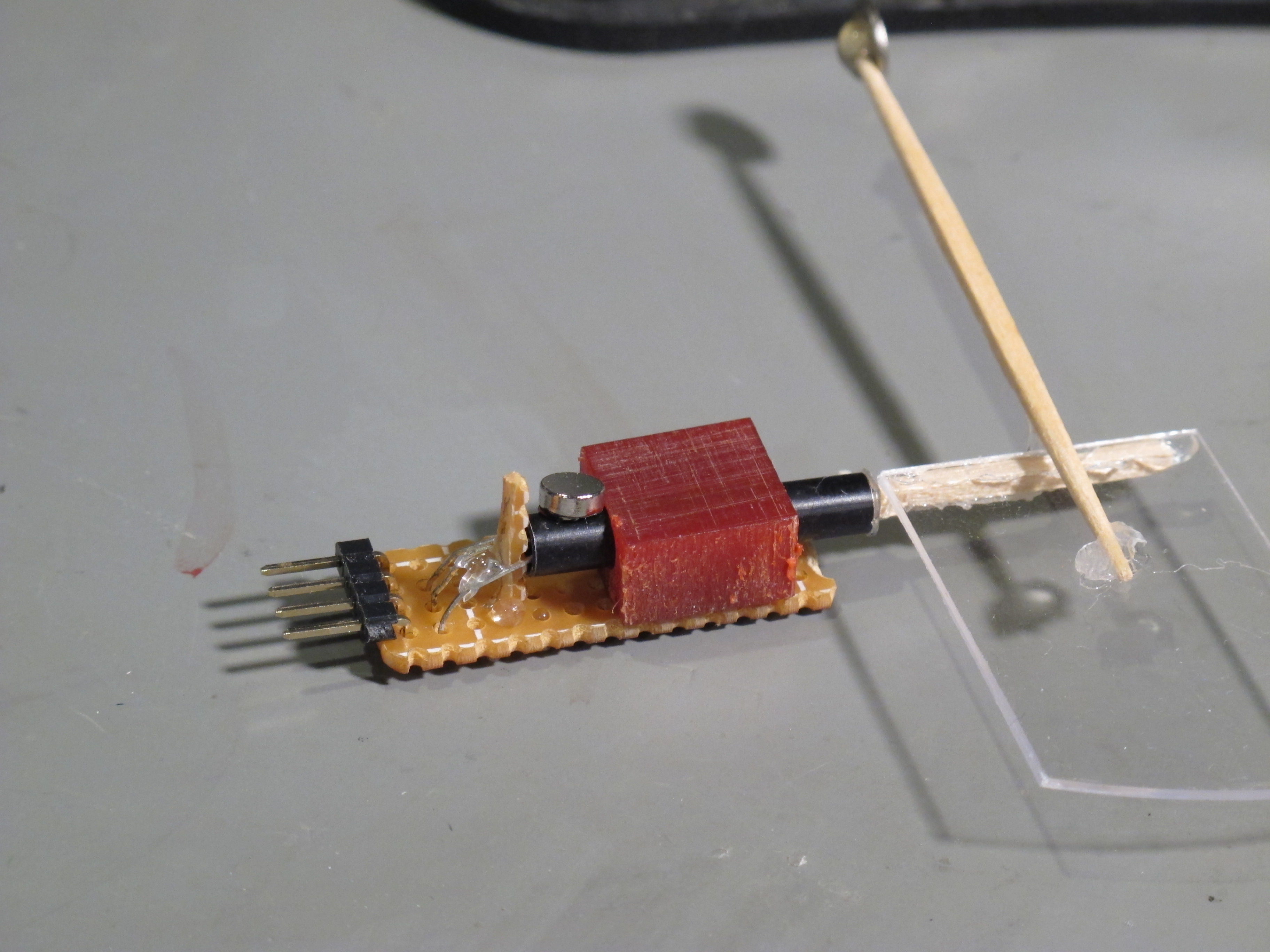
I just finished building this tiny rocket altimeter.  It fits inside a standard 18mm (diameter) rocket motor case – in this case, a used Estes C6-7 motor.

side_img_0376

It’s based on Robert DeHate’s PICO-AD4 altimeter.  It measures peak altitude and will fire the ejection system at either apogee or a main deployment point (a few hundred feet AGL).

The most difficult thing was finding an adequate battery that would fit – I ended up with a L1016 6v alkaline; they are widely available (online) and inexpensive.   It uses a 220 uF capacitor to fire a AG1 flashbulb for deployment (220 uF is enough to do this reliably).

Here’s the schematic – not much to it:

ad4-altimeter-schematic_500px

I drew a power switch, but I couldn’t get it to fit.  So I just take out the battery to turn it off.

I made the hole for the battery with a Dremel tool.

Here’s the back side:

bottom_img_0379

The jumper on the back (J1) selects whether the ejection will happen at apogee or using the main deployment point.

The two bolts/nuts on the end are the attachment for the AG1 bulb (2-56 hardware), the battery clips were made from parts in my junk box.  The negative terminal is soldered onto two cut-off pieces of paperclip (paperclips are made out of good-quality steel), which are in turn soldered onto the perfboard.

(By the way, I’ve discovered the perfect tool for cutting PCB traces – a little battery-powered engraver. Harbor Freight sells the one I use for less than $10.  Just make sure you blow away all the tiny copper pieces afterward with canned air.)

The resistor is just to limit the charging current on the capacitor – that little battery really doesn’t like high currents.  The resistor value is not critical – anything from 500 to 3000 ohms or so should be fine.

Here’s a top view (with it running and the LED blinking):

top_img_0366

The 220 uF cap is held in place with some hot glue (as are some of the wire-wrap wires on the back).  I used epoxy to hold down the jumper, screws and base nuts and to reinforce the thin bits of perfboard next to the battery – otherwise the whole thing bends too much under the off-axis tension from the battery springs (I broke an earlier version that way).

Here it is snug in it’s 18mm motor case:

end_img_0362

The flashbulb wires are meant to go out the other end, thru the rocket nozzle hole.

As you can see, I had to ream out the inside of the motor case a bit to get things to fit.  (This was desirable anyway, to get out all the black soot left after firing – do NOT try this with a unused motor!!)

The reaming was done starting with a 1/2″ drill bit, then a 9/16″, finishing with sandpaper wrapped around the 9/16″ bit (use some double-stick tape to keep it on there).  It helps a lot to have a drill press.

I haven’t flown it yet, but it works well on the workbench.

Detecting Windows software RAID failure

A RAID 1 or RAID 5 array will avoid losing data when one of the N drives in the array fails.

But if a second drive fails, you lose your data.  So it’s important to know when one of your RAID drives has a problem.

Windows NT, 2000, and XP (if you do this), plus server versions of Windows, support software RAID – no special RAID hardware needed, just drives visible to the OS.  (It might work with Vista, too; I haven’t tried.)

But there’s no way for Windows to notify you when there’s a problem with one of the drives.  (You really want to replace a failing drive before a second one goes bad!)

So I put together CheckRAID to solve this.  (Click to download; it’s a 133 kB ZIP file).  It’s freeware (public domain).

Unzip it into a folder (anywhere you please) and run CheckRAID.bat every so often to check for a failed (or unsynchronized) RAID drive.   See the README.TXT inside for more details.

Enjoy.  If you find this useful, I’d appreciate a comment.

Where lift really comes from

I’ve been reading Martin Simons’ wonderful Model Aircraft Aerodynamics (3rd ed.) recently. I was hoping to find out, among other things, where lift really comes from. Simons’ book has lots of fascinating detail about aircraft design (not just for models), but didn’t answer that question.

But I have finally figured it out, and thought I’d share it with you–

First, lift has nothing to do with the curvature of wings. Airplanes with completely flat wings can fly (although not as efficiently as with proper airfoils). And airplanes with curved wings can and do fly upside down.

Wing curvature and airfoil shapes are for the purpose of reducing drag – valuable, but not necessary for lift. Because most aircraft wing shapes are optimized for efficient (low-drag) right-side-up flight, inverted flight is less efficient. But possible. (Aerobatic aircraft that spend lots of time upside down often have symmetrical wings.)

Second, lift has nothing to do with “equal transit time” for molecules on the top and bottom of the wing surface – this is simply a myth (well debunked both at Wikipedia and in a nice article at Plane & Pilot magazine). While it’s true that air flows faster on top of a wing, it does not rejoin the flow on the bottom at the trailing edge of the wing.

So what is it, then?

There are two popular explanations, both of which are correct, because they are two ways of describing the same thing. One, Bernoulli’s Principle, is easily misunderstood and leads to lots of confusion. The other, Newton’s Third Law of Motion, is simple to understand.

Wings generate lift by deflecting incoming air downwards.

Therefore, lift comes from Newton’s Third Law – the action of pushing air down results in a reaction of the wing being pushed up.

As an aircraft flies, the wing presents some angle of attack to the incoming air – a wing that is generating lift isn’t aimed straight forward; instead the leading edge is a little higher than the trailing edge; this is the angle of attack.

To just slightly oversimplify – air molecules come at the wing and whack into the bottom side, bouncing off downwards and pushing the wing up. This transfers momentum from the molecule into the wing, generating lift. The overall stream of air that goes past the wing is deflected downward, resulting in an upward reaction on the wing. This is the Newtonian explanation of lift.

In Bernoulli terms (again, slightly oversimplified), because of the angle of attack, lots of air molecules are swept down under the bottom of the wing, and less go over the top. Since there are now more molecules on the bottom and less on the top, there is more pressure on the bottom and less pressure on the top. So this pressure differential pushes the wing up. This is the Bernoulli explanation of lift, and it is equally correct – Bernoulli’s equations are derived from Newton’s – it’s just another way of saying the same thing.

And, yes, air on top of the wing does move faster than on the bottom, just as Bernoulli says. In Newtonian terms, because the leading edge has swept lots of air molecules under the wing, there are fewer molecules on top. All the molecules in front of the wing (before the sweeping-away) are still pushing on those few remaining molecules on top of the wing, but there’s not much pushing back – so they accelerate. And vice-versa on the bottom of the wing.

If you find the above confusing, I can’t recommend a better introduction to the basic behavior of molecules and matter than the first chapter of Richard Feynman’s Six Easy Pieces – it should be mandatory reading for high school graduation.